
The best all-purpose Open Graph image size in 2026 is 1200 × 630 pixels, using a 1.91:1 aspect ratio. Facebook recommends 1200 × 630 px for high-resolution link shares, while LinkedIn asks for a nearly identical 1200 × 627 px image. One 1200 × 630 file therefore remains the safest default for articles, landing pages, product pages, and most WordPress posts.
Size alone does not guarantee a clean preview. The image must be publicly accessible, declared through correct Open Graph metadata, compressed sensibly, and designed so faces, logos, products, and short text survive platform cropping. Publishers also need to account for cached previews, X Card tags, and messaging apps that interpret the same file differently.
What Is the Best Open Graph Image Size in 2026?
Use 1200 × 630 px as the default social sharing image.
The dimensions are close enough to LinkedIn’s 1200 × 627 specification for one file to work across Facebook, LinkedIn, X, Slack, Discord, WhatsApp, and other services that read Open Graph metadata.
The Open Graph protocol does not impose a universal pixel size. It defines og:image plus optional properties for width, height, file type, secure URL, and alternative text.
| Setting | Recommended Value |
| Canvas size | 1200 × 630 px |
| Aspect ratio | 1.91:1 |
| Preferred formats | JPG or PNG |
| Practical file target | Under 1 MB |
| Facebook maximum | 8 MB |
| LinkedIn maximum | 5 MB |
| Image URL | Absolute HTTPS URL |
The under-1-MB target is a performance recommendation, not a platform rule. Smaller files are easier for crawlers to fetch when a content delivery network, firewall, or slow server sits between the platform and the image.
Open Graph Image Requirements by Platform

Platform rules are similar, yet preview layouts are not identical. A file can pass validation and still look awkward after a crop.
| Platform | Best Working Size | Key Requirement | Main Risk |
| 1200 × 630 px | At least 600 × 315 px, under 8 MB | Small images may receive weaker presentation | |
| 1200 × 627 px | 1.91:1 ratio, under 5 MB | Narrow images may become thumbnails | |
| X | 1200 × 630 px | Use summary_large_image | Current public guidance is less specific |
| Slack | 1200 × 630 px | Valid Open Graph or X Card tags | Layout varies by client |
| Messaging apps | 1200 × 630 px | Publicly reachable page and image | Cropping varies by app |
Meta recommends images of at least 1200 × 630 px for high-resolution devices and names 600 × 315 px as the minimum. According to its sharing image guidance, the image file must stay below 8 MB.
LinkedIn lists 1200 × 627 px, a 1.91:1 ratio, and a 5 MB maximum in its image specification guidance. Images below 401 pixels wide can display as a thumbnail instead of a larger card.
X needs extra caution. Former official card pages now redirect to the general developer platform overview, so public guidance is less detailed in July 2026. The twitter:card value summary_large_image and a 1200 × 630 landscape file remain a practical setup, but real-post testing matters more than an old specification. The platform’s large image card page remains a useful reference.
Slack says its crawler reads common Open Graph and X Card metadata when creating a classic link unfurl. Its crawler cache is generally reused for about 30 minutes, which can explain why a corrected preview does not update immediately. More detail appears in Slack’s link unfurling documentation.
Why Does 1200 × 630 Work So Well?
A 1200 × 630 image provides enough resolution for modern screens without creating an unnecessarily heavy file. The landscape shape also matches the dominant large-card layout.
The extra width leaves room for a photo, short headline, and restrained branding. The 630-pixel height preserves enough vertical detail for faces and products while keeping the card compact in a feed. The same design scales cleanly to 600 × 315, Meta’s minimum recommended large-image size.
Do not treat the full canvas as guaranteed visible space. Interfaces can add rounded corners, crop several pixels, place labels over an edge, or switch to a smaller thumbnail. Keep essential content inside a central area of roughly 960 × 500 px. The safe area is a practical design precaution, not an official platform standard.
How Should an Open Graph Image Be Designed?
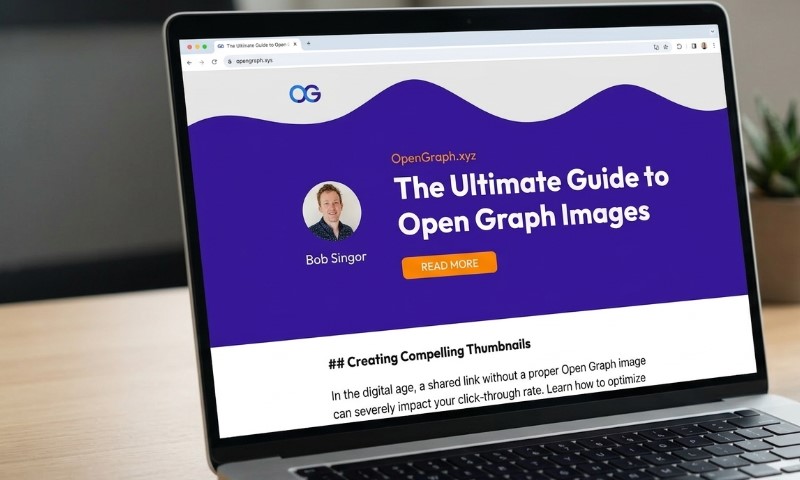
A strong Open Graph image communicates the page topic in one glance, like hero image. Use one dominant subject, a short phrase, clear contrast, and modest branding.
A product page should show the product clearly. A news article should use a relevant editorial image. A guide can pair a simple visual with a concise title. Generic office photos, tiny screenshots, and crowded collages often lose meaning once reduced in a feed.
Keep Text Short and Large
Use four to eight words, preferably across one or two lines. Social previews already display an og:title, so copying a long article headline into the image wastes space. Fine print may look acceptable on a desktop canvas but become unreadable on a phone.
Protect Faces, Logos, and Products
Place the main subject near the center rather than against an edge. Move logos inward from corners. For a 1200 × 630 image, about 90 to 120 px of horizontal breathing room and 60 to 80 px vertically is a sensible production rule.
Choose JPG or PNG
JPG suits photographs and usually produces smaller files. PNG works well for logos, interface graphics, illustrations, and text-heavy artwork. LinkedIn accepts JPG, PNG, and GIF for its sharing module, while broad compatibility still makes JPG and PNG the safer options.
WebP works on many modern services, but JPG carries less risk across older crawlers, apps, and content management systems.
Which Open Graph Tags Are Required?

Add og:title, og:type, og:image, and og:url at minimum. The Open Graph protocol identifies those four properties as basic metadata. og:description is optional in the core specification but useful for link previews.
<meta property=”og:title” content=”Open Graph Image Size Guide for 2026″>
<meta property=”og:type” content=”article”>
<meta property=”og:url” content=”https://example.com/open-graph-image-size/”>
<meta property=”og:description” content=”Dimensions, metadata, design rules, and testing steps for social link previews.”>
<meta property=”og:image” content=”https://example.com/images/open-graph-size-guide.jpg”>
<meta property=”og:image:secure_url” content=”https://example.com/images/open-graph-size-guide.jpg”>
<meta property=”og:image:type” content=”image/jpeg”>
<meta property=”og:image:width” content=”1200″>
<meta property=”og:image:height” content=”630″>
<meta property=”og:image:alt” content=”Diagram of a 1200 by 630 pixel social sharing image”>
<meta name=”twitter:card” content=”summary_large_image”>
<meta name=”twitter:image” content=”https://example.com/images/open-graph-size-guide.jpg”>
Width and height tags help a crawler identify the asset. Alternative text describes the image for systems that consume the field. The protocol recommends og:image:alt whenever og:image is present.
Use full HTTPS URLs, not relative paths such as /images/card.jpg. The image must load without login, cookie approval, hotlink restrictions, or crawler-blocking security rules.
Why Is the Wrong Image Appearing?
An old or incorrect preview usually comes from caching, duplicate metadata, inaccessible files, or tags rendered only by client-side JavaScript.
Platforms fetch a URL, store its metadata, and reuse the result. Replacing a WordPress image while keeping the same file URL can leave an older preview in circulation.
Meta’s Sharing Debugger previews Facebook shares and reports Open Graph problems. After an update, inspect the page and request a fresh scrape.
LinkedIn offers Post Inspector guidance for the same purpose. LinkedIn states that refreshed data affects new shares, while existing posts retain the earlier preview.
Use the following correction sequence:
- Update the image and metadata.
- Purge CMS, page, CDN, and image caches.
- Confirm the live HTML contains one correct tag set.
- Confirm the image returns HTTP 200.
- Run the URL through the platform inspector.
- Publish a new test post.
A new filename, such as guide-og-2026-v2.jpg, can help when a CDN or social cache keeps returning an older binary.
Common Open Graph Image Mistakes
Using an unchecked featured-image crop: A vertical blog photo may lose the subject in a 1.91:1 card.
Adding too much text: Long headlines become unreadable on mobile.
Publishing duplicate tags: A theme, SEO plugin, and custom code may each output a different og:image. The Open Graph specification gives preference to the first value when multiple values conflict.
Rendering tags only in the browser: Social crawlers may not execute client-side JavaScript like a normal browser. Put metadata in the server-delivered HTML <head>.
Blocking crawlers: Bot protection, authentication, rate limits, or hotlink controls can prevent fetching.
Reusing one generic image: A logo-only fallback makes unrelated pages look identical and offers little context.
A Practical Publishing Workflow
Create a reusable 1200 × 630 template in Figma, Canva, Photoshop, or a similar tool or gadget. Define a central safe area, fixed logo position, headline style, and image treatment. Export a page-specific JPG for each important URL.
In WordPress, use one established SEO plugin or social metadata system. Set a global fallback for pages without artwork, then assign specific social images to cornerstone articles, products, campaigns, and news posts. Avoid overlapping tools that output competing tags.
Before publication, verify one og:title, one canonical og:url, one primary og:image, correct width and height, descriptive og:image:alt, twitter:card set to summary_large_image, and a public image returning HTTP 200.
Test high-value pages on Facebook and LinkedIn before a campaign. Paste the URL into Slack or another team messaging app as well. Real previews reveal crops and cache behavior that code checks cannot fully predict.
Final Recommendation
For most websites in 2026, build Open Graph images at 1200 × 630 px, keep key content near the center, export a compressed JPG or PNG, and place complete image metadata in the server-rendered page source. One file covers Facebook’s preferred size and sits close enough to LinkedIn’s 1200 × 627 requirement for reliable cross-platform use.
A technically valid card can still fail when the subject is cropped, the headline is tiny, or an old image remains cached. Reliable previews come from correct dimensions, focused design, clean metadata, public access, and platform-specific testing.